Submitted Data
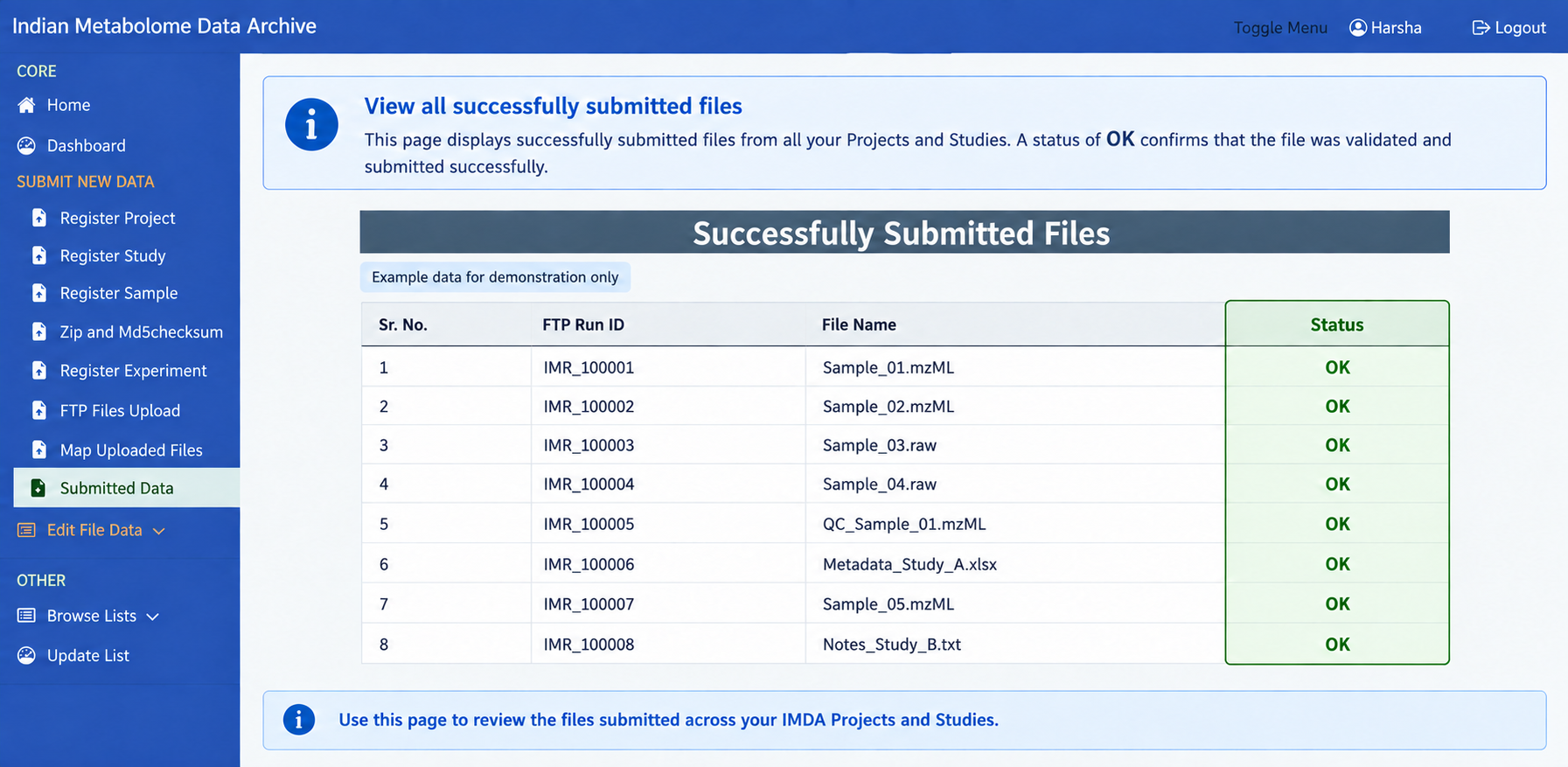
Use Submitted Data to check whether your study has been submitted, reviewed, corrected, or released.
Tracking Your Study
- Open Submitted Data from the IMDA sidebar.
- Review the table of submitted files for the selected project and study.
- Check the Status column for each file.
- A status of OK means the file was validated and submitted successfully.
- If any expected file is missing or does not show OK, return to Validate Files and validate again.
| Status | Meaning | Action Required |
|---|---|---|
| OK | File was validated and submitted successfully. | No action needed for that file. |
| Unmapped | File is uploaded but not fully mapped or validated. | Go back to Validate Files, check file names and mapping, then validate again. |
| Missing file | Expected file is not visible in Submitted Data. | Check the FTP upload folder and upload the file again if needed. |
After Submission
Use this page to review files submitted across your IMDA projects and studies. IMDA may contact the registered email if any correction is required.
Corrections After Submission
Use Edit File Data only when study details or uploaded files need correction before final submit/check, or when IMDA asks for a correction.
| Submission Status | Edit Button Status | Required Action |
|---|---|---|
| Pre-Submission | Active | Click the edit option for the relevant row. |
| Post-Submission | Disabled or hidden | Contact IMDA support to request temporary edit access. |
Common edit actions include:
- Edit Project / Study / Sample Details: Correct project, study, or sample information before final submit/check.
- Edit Upload Run: Replace corrupted or incorrect raw data files.
- Edit Metabolite / Compound File: Replace the processed metabolite summary file.
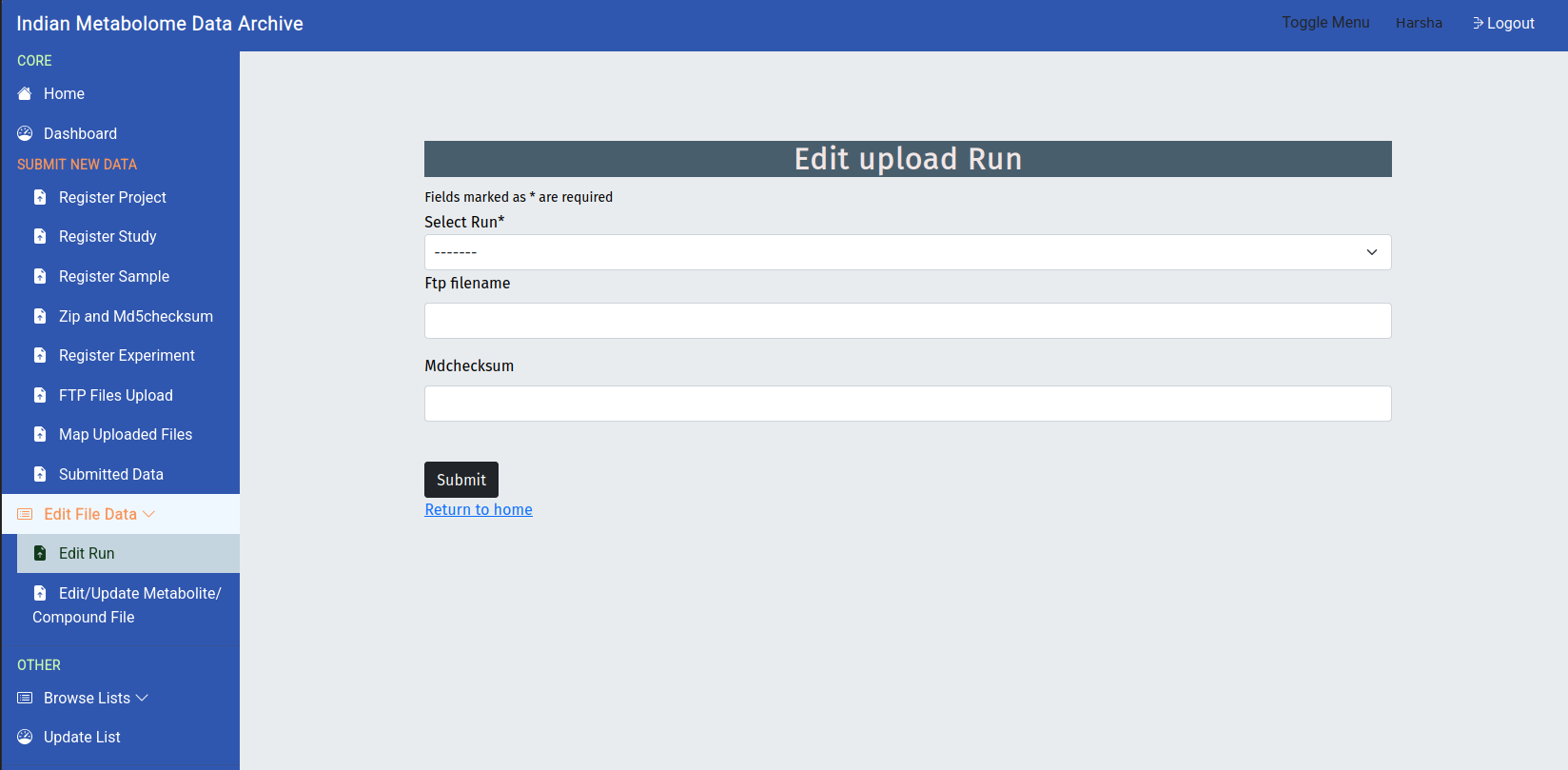
Edit Upload Run
Use Edit Upload Run when a raw data file needs correction or replacement.
| Field | What to Enter |
|---|---|
| Study | Select the study linked to the uploaded run. |
| FTP Filename | Select the uploaded file that needs correction. |
| MD5 Checksum | Enter the corrected lowercase checksum for the replacement file. |
Edit Metabolite / Compound File
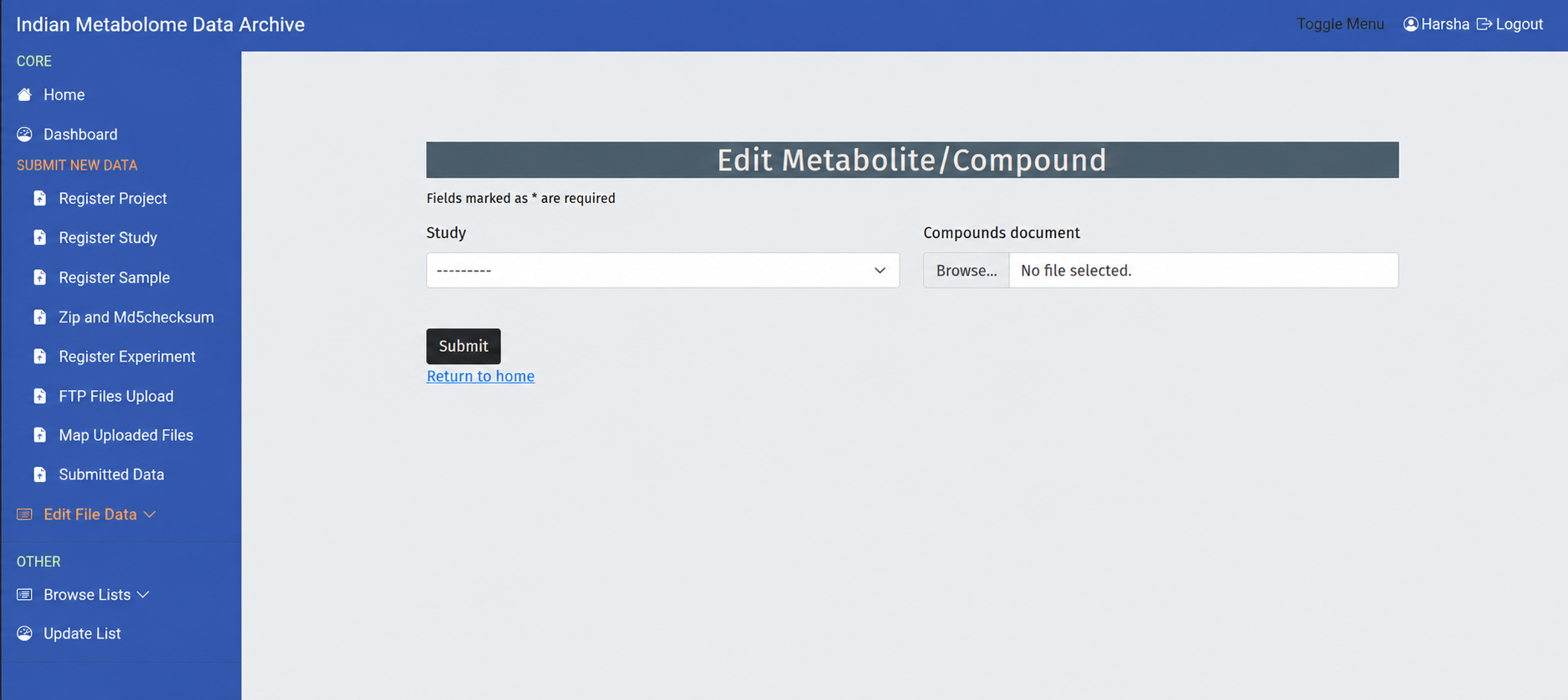
Use this option when the processed metabolite or compound file needs to be replaced.
| Field | What to Enter |
|---|---|
| Study | Select the study linked to the processed file. |
| Compound Document | Upload the corrected metabolite or compound file. |
Controlled Vocabulary Updates
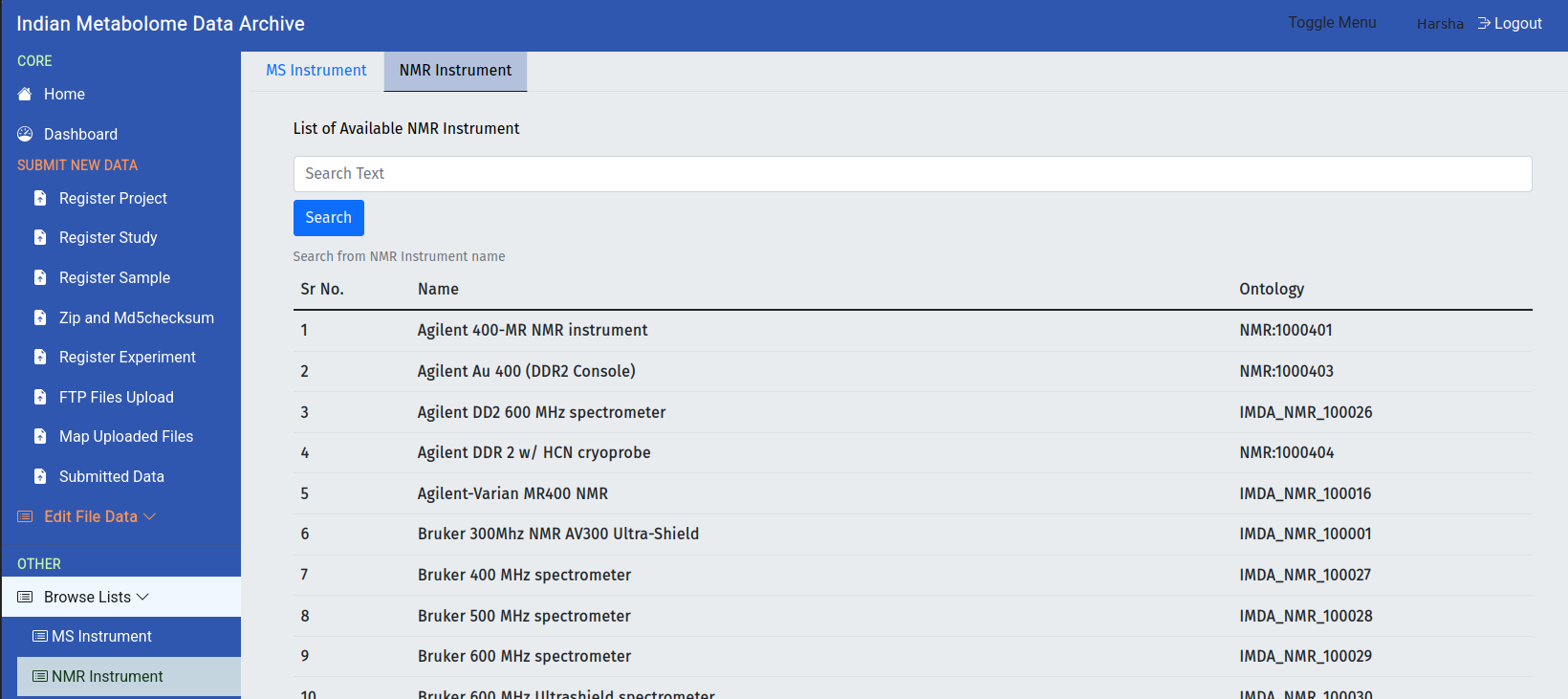
Use Browse Lists to check whether an organism, source, or MS/NMR instrument name is already available in IMDA. If the required name is missing, use Update List to request it.
| Browse List | What to Check |
|---|---|
| MS Instrument | Confirm whether the required mass spectrometry instrument already exists. |
| NMR Instrument | Confirm whether the required NMR instrument already exists. |
| Source / Organism Terms | Use existing portal terms wherever possible. |
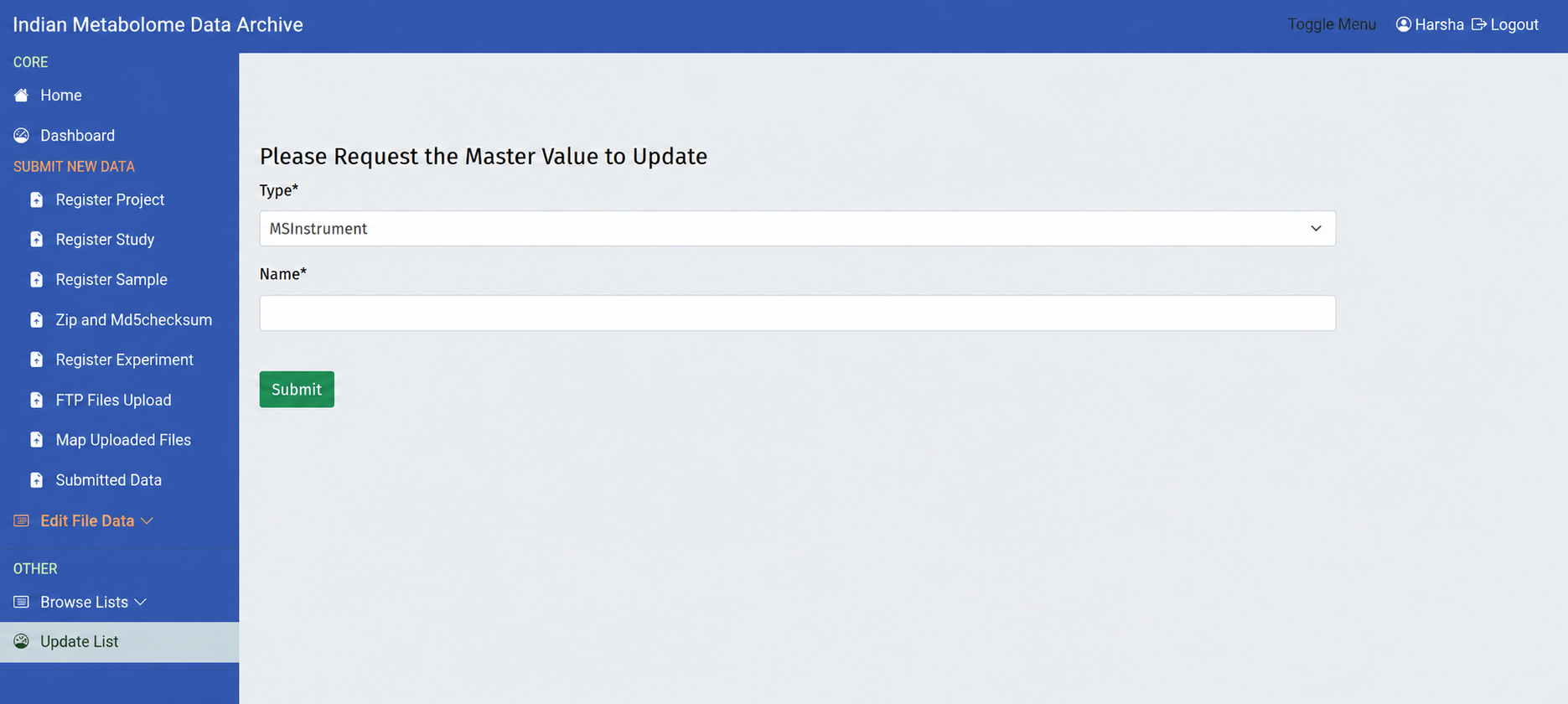
Update List
Request a new list value only when the required value is not already available.
| Field | What to Enter |
|---|---|
| List Type | Select the category to update, such as MS instrument, NMR instrument, organism, or source. |
| Name / Value | Enter the exact term to be added. |
Support and Citation
Data Availability Statement
Use this statement when citing your completed submission. Replace the example IDs with the permanent Project and Study accession numbers assigned by IMDA. Do not use temporary IDs.
Suggested Data Availability Statement
The data are available at the Indian Metabolome Data Archive (IMDA) of the Indian Biological Data Centre (IBDC), https://ibdc.dbt.gov.in/imda/home.html, with IBDC Project accession no. IMP_XXXXXX and Study accession no. IMS_XXXXXX.
Support
For help with your submission or accession numbers, contact imda.support@ibdc.rcb.res.in.
Common Mistakes
Do not assume the submission is complete only because files were uploaded. Check the status in Submitted Data and respond quickly if IMDA requests corrections.