Validate Files
After FTP upload, open Map Uploaded Files from the IMDA sidebar to validate the files. This step checks whether uploaded files are visible for the correct study and whether each file is ready for final submission.
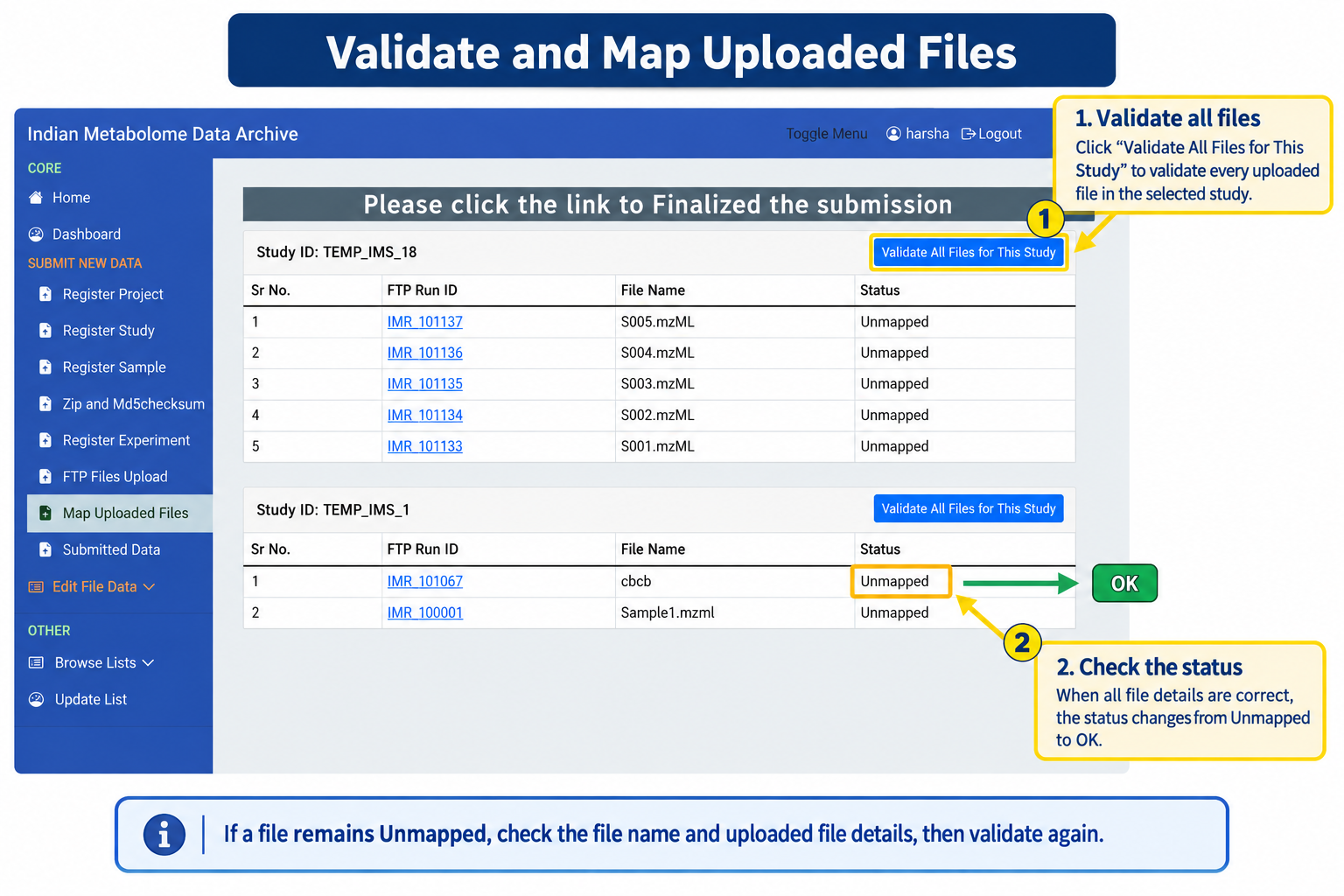
What This Page Shows
| Item | What It Means |
|---|---|
| Study ID | The study where the uploaded files are listed. Check that you are working under the correct study. |
| FTP Run ID | The upload run generated by IMDA for each uploaded file. |
| File Name | The file detected from FTP upload. Confirm that the name matches the file name used in the experiment template. |
| Status | Shows whether the uploaded file is mapped and accepted. If it remains Unmapped, check the file name and uploaded file details. |
| Validate All Files For This Study | Click this button after checking all files for that study. |
Validation Procedure
- Open Map Uploaded Files from the left sidebar.
- Find the correct Study ID.
- Check that every expected uploaded file is listed.
- Confirm the file names match the experiment template and MD5 checksum information.
- Click Validate All Files For This Study.
- Check the Status column. When the file details are correct, the status should change from Unmapped to OK.
If the Status Stays Unmapped
Check whether the uploaded file name matches the experiment template exactly. Also confirm that the file was uploaded into the correct study folder in FTP. Correct the issue, then validate again.
Before Moving to Submitted Data
Do not move to final submission if expected files are missing, mapped to the wrong study, or still showing Unmapped.